
cPanel account migration is a very common problem. Hoping from one server to another is easy, and since it is automated, we are used to doing it. Email accounts are also automatically transferred, but restoring your emails can be tricky. Using the cPanel backup wizard to restore can be tricky, but there also are some other ways to do the job. Those are:
1. Backing up emails via File Manager
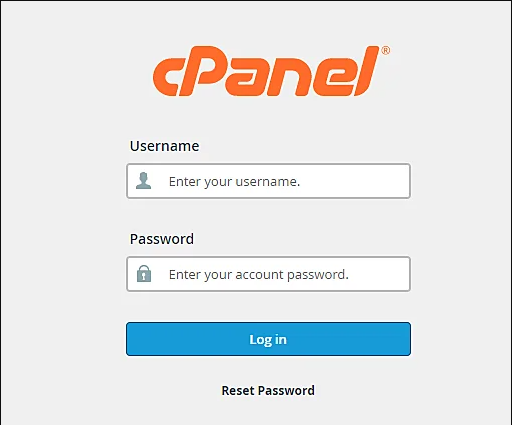
Step I: Sign in to your cPanel account.
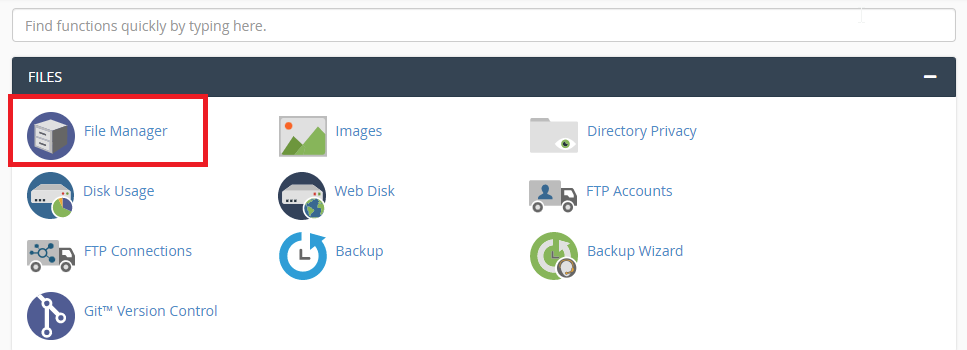
open the ‘File Manager’ option under ‘Files’ tab.
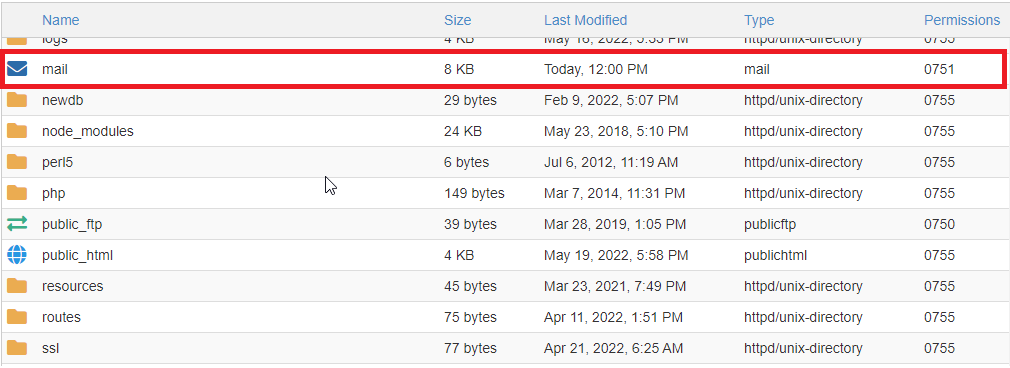
Step II: Click on your account’s home directory, navigate to ‘Mail’ folder and select it.
Step III: Right-click on the ‘Mail’ option, look for the ‘Compress’ option, and select it. There are various types of compression extensions like .zip, .tar, .tar.gz, .tar.bz2.
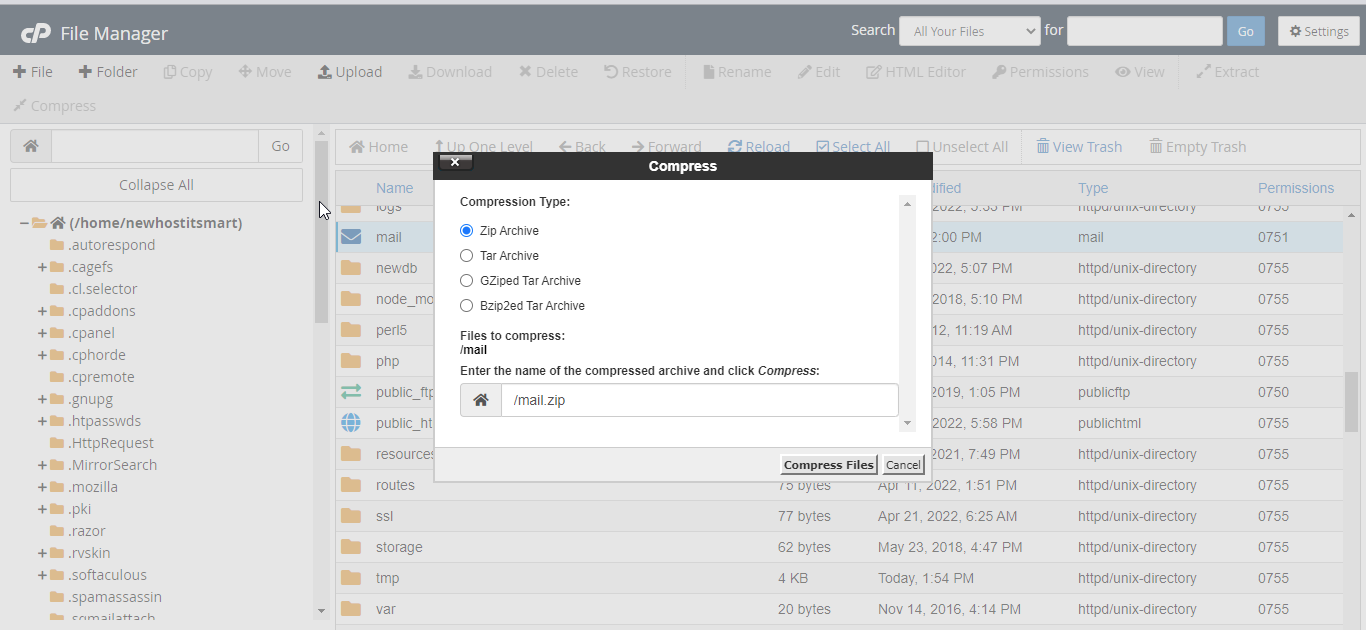
Step IV: Choose one of the compression techniques as per your requirement.
Step V: Leave the name as it is and click on the ‘Compress File(s)’ button.
Step VI: The compressed file is stored on your hosting account server. Right-click on the compressed file and download it.
You have successfully backed up and downloaded your emails.
